What Developers Should Check Before Migrating a Website
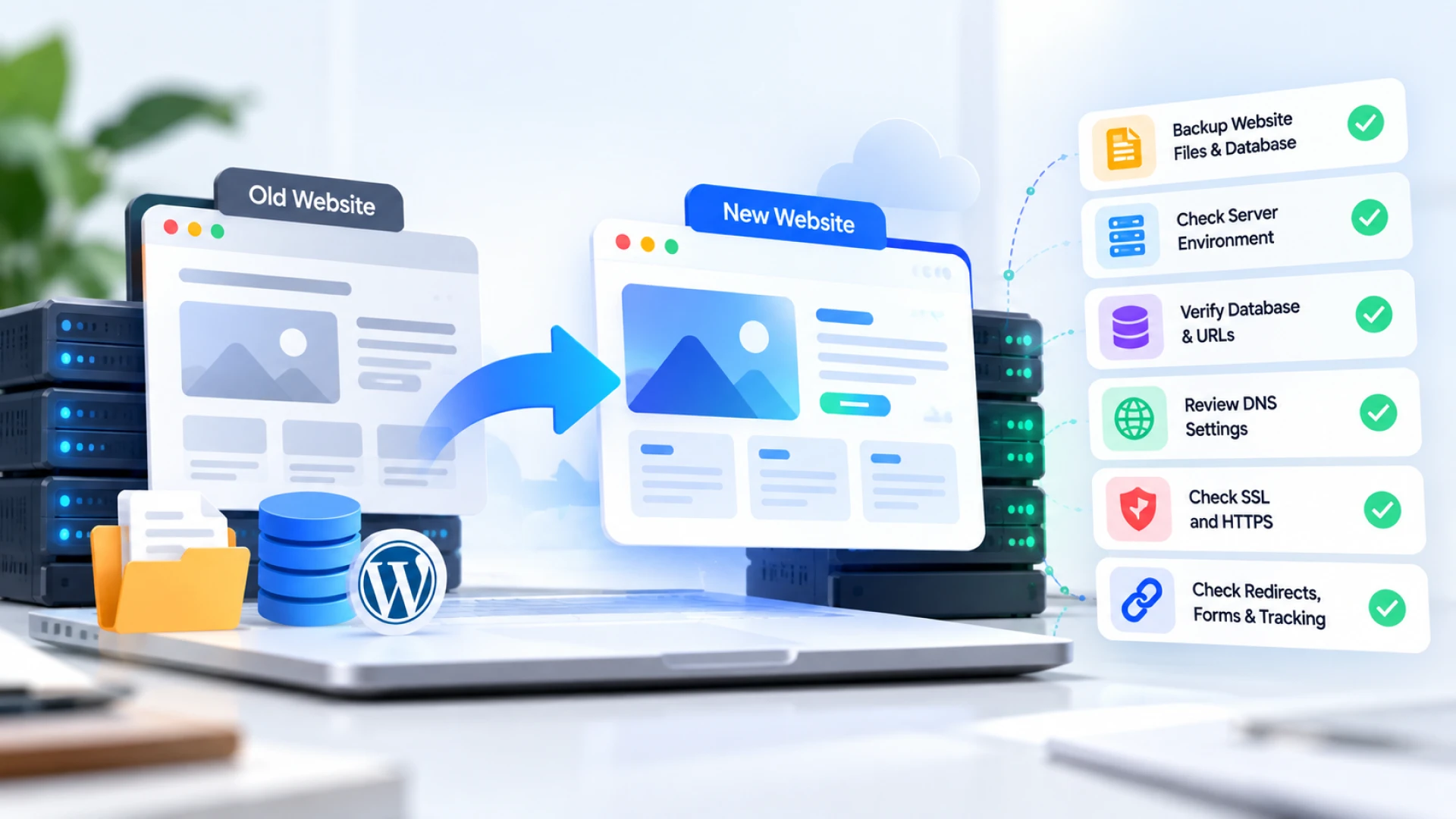
Website migration is more than moving files from one server to another. A site can look completely normal after a migration while forms, redirects, tracking, emails or other important functions have quietly stopped working.
Whether you are changing hosting, moving to a new domain or launching a redesigned website, checking the technical setup before and after the move can prevent many common problems.
Know What Type of Migration You Are Handling
Not every website migration involves the same work. Before starting, developers should be clear about what is actually changing.
A migration might involve:
Moving to a new hosting provider
Changing servers
Moving from staging to a live domain
Changing the website domain
Launching a redesigned website
Moving from one CMS to another
Moving an online store to another platform
For example, moving the same WordPress website to a new host may mainly involve files, databases, DNS and server configuration. Moving from an old website to a completely redesigned version can also involve changed URLs, redirects, new templates and tracking changes.
Understanding the scope first makes the rest of the migration much easier to plan.
Create a Complete Website Backup
Never start a migration without having a reliable copy of the existing website. If something goes wrong, the backup gives you a way to restore the previous version.
Depending on the website, the backup should include:
Website files
Database
Images and uploads
Themes and plugins
Custom code
Configuration files
For example, backing up only the WordPress /uploads/ folder is not enough. The page content, users, settings and much of the plugin data may be stored in the database.
Developers should also confirm that the backup can actually be restored. A backup is useful only if it works when you need it.
Check the New Server Environment
A website that works on the existing hosting environment may not behave exactly the same way after being moved.
Before migration, compare important server settings such as:
PHP version
Database version
PHP memory limit
Upload limits
Required PHP extensions
File permissions
Caching configuration
Cron jobs
For example, an older WordPress website may be running correctly on PHP 7.x but contain an outdated plugin that causes errors when moved to a server using a newer PHP version.
Finding that compatibility problem before changing the live website gives the developer time to update or replace the affected code.
Check the Database
For websites built on WordPress and other CMS platforms, transferring the database correctly is just as important as moving the website files.
After importing the database, check that the website can connect to it correctly and that important content and settings are present.
If the domain is changing, old URLs may also exist inside the database.
For example:
https://staging.example.com/contact/
may need to become:
However, developers should use an appropriate migration or search-and-replace method for the CMS rather than blindly replacing database values. Some plugins and themes store information in formats that can be damaged by an incorrect replacement.
Review DNS Before Making Changes
DNS is often changed near the end of a migration, but developers should review it before the work begins.
Check:
Where the DNS is currently managed
Which record points to the website
Existing A and CNAME records
MX records used for email
TXT verification records
Records used by third-party services
For example, suppose the website only needs a new A record to point to its new server. Replacing the entire DNS configuration instead could accidentally remove MX records and stop company email from working.
The safest approach is to understand exactly which records need changing and leave unrelated records alone.
Check SSL and HTTPS
The new server should have a valid SSL certificate before the migration is considered complete.
After the move, test both:
and
The HTTP version should redirect correctly to HTTPS.
Developers should also look for mixed content. This happens when an HTTPS page still loads an image, stylesheet or script using an old HTTP URL.
For example:
http://example.com/images/banner.jpg
may need to be updated to:
https://example.com/images/banner.jpg
Mixed content can cause browser security warnings and may prevent some resources from loading correctly.
Record Important URLs Before Migration
If an existing website has been online for years, its URLs may already receive traffic, have backlinks and appear in Google.
Before migration, record important URLs such as:
Homepage
Service pages
Product and category pages
Location pages
Popular blog posts
Contact pages
Important landing pages
If those URLs are not changing, confirm that they still return the correct pages after migration.
If they are changing, prepare redirects.
For example:
example.com/seo-services-india/
changing to:
example.com/services/seo-services/
should normally have an appropriate redirect from the old URL to the new one.
Without it, existing visitors and search engines may reach a 404 page.
Look for Old or Hardcoded URLs
Old URLs can remain hidden in unexpected places after migration.
Check areas such as:
Theme files
CSS
JavaScript
Page builders
Widgets
Images
Buttons
Forms
Custom templates
Configuration files
A common example occurs when a site is developed at:
After launch, most pages use example.com, but a homepage image or button still points to the staging website.
Searching the website for the previous domain can help identify these leftover references.
Test Every Important Form
Forms deserve particular attention because a form can appear to work without actually delivering the enquiry.
Test contact forms, quote forms, newsletter forms, registration forms and any other important lead-generation forms.
For each form, check:
Does it submit successfully?
Does the thank-you message/page appear?
Does the business receive the email?
Does the customer receive an autoresponder?
Does spam protection work?
Does the lead reach the CRM if one is connected?
For example, a user may see “Thank you, your message has been sent” while the notification email never reaches the sales team because the new server's mail configuration is different.
That is why developers should test the entire process, not just the submit button.
Check Third-Party Integrations
Most business websites now connect to external tools, and some of those connections may be affected when the domain or hosting environment changes.
Common examples include:
Payment gateways
CRM systems
Live chat
Booking software
Email marketing platforms
Google Maps
CAPTCHA
Social integrations
External APIs
WhatsApp integrations
For example, a payment gateway may have a callback URL configured for the old domain. The website itself could work perfectly after migration while payment confirmation fails because the gateway is still communicating with the previous URL.
Make a list of important integrations before migration and test each one afterwards.
Test the New Website Before Pointing the Domain
Whenever possible, test the migrated website on the new server before changing DNS.
Do not just open the homepage and assume everything is fine. Check the different parts of the website that visitors actually use.
A basic pre-launch test should include:
Main navigation
Service/product pages
Mobile menu
Internal links
Images
Forms
Search
Login functionality
Buttons and CTAs
Downloads
Interactive features
For an e-commerce website, go further. Add a product to the cart, proceed through checkout, test payment and confirm that order emails are generated.
The aim is to find problems before real visitors reach the new server.
Verify Analytics and Conversion Tracking
Tracking is another area that can disappear during a redesign or migration without anyone immediately noticing.
Check whether tools such as Google Tag Manager and Google Analytics are still installed and receiving data.
Important conversion events may include:
Contact form submissions
Phone number clicks
Email clicks
WhatsApp clicks
Purchases
Downloads
Quote requests
For example, if Google Tag Manager was added directly to the header of an old WordPress theme, switching to a new theme may remove the code completely.
The website will still work, but marketing teams could lose conversion data until the problem is discovered.
Check SEO and Indexing Settings
Development websites are often intentionally blocked from search engines. Before launch, developers need to make sure those restrictions have not been transferred to the live website.
Check:
robots.txt
Meta robots tags
XML sitemap
Canonical URLs
CMS search visibility settings
Redirects
Internal links
For WordPress websites, also check Settings → Reading → Search engine visibility.
A staging website may have “Discourage search engines from indexing this site” enabled. If that setting remains active after launch, it can create serious indexing problems.
Check Website Performance
Moving to another server can change website performance even when the design and content remain exactly the same.
After migration, review important pages for:
Slow server response
Large images
Caching problems
CSS or JavaScript issues
CDN configuration
Database performance
Failed resources
Compare performance before and after migration where possible.
For example, if a page previously loaded quickly but becomes noticeably slower after the move, the issue may be related to caching or server configuration rather than the website design itself.
Test Mobile and Different Browsers
A website should not only be tested on the developer's desktop.
Check important pages on different screen sizes and, where practical, across commonly used browsers. Pay particular attention to navigation menus, forms, pop-ups, buttons and elements that rely on JavaScript.
A desktop contact form, for example, may work correctly while the submit button becomes difficult to use on a smaller mobile screen after a CSS change.
Migration testing should therefore include the actual experience visitors will have, not just whether the server returns a page successfully.
Don’t Cancel the Old Hosting Immediately
Once the new website is live, it can be tempting to close the old hosting account straight away. Keeping the old environment available for a short period can be useful if something unexpected is discovered.
For example, the team may later realise that an old downloadable file, configuration setting or database record was missed during the migration. Having access to the previous environment makes recovery much easier.
Once the new website has been properly tested and is running without issues, the previous hosting environment can be safely removed.
Quick Post-Migration Checklist
Once the domain points to the new website, developers should run through another quick check:
Open important pages
Test desktop and mobile navigation
Submit all important forms
Confirm email notifications
Test redirects
Check HTTPS
Review missing images and files
Test third-party integrations
Verify analytics
Test conversion tracking
Check robots.txt
Confirm important pages are indexable
Review the XML sitemap
Check website speed
Monitor for 404 and server errors
For an e-commerce website, also complete a test order from product page to payment and order confirmation.
A Website Migration Is Complete Only After Testing
Transferring the website is only one part of a migration. The real test is whether the website, its integrations and its important business functions continue working correctly in the new environment.
Backups, server compatibility, DNS, SSL, URLs, forms, tracking and indexing should all be considered before the final switch. A little more preparation before migration can save hours of troubleshooting after launch.
The final step should always be testing the website as a real visitor would: browse the pages, use the forms, click the buttons and complete the important actions the website was built to support.
Planning a Website Migration?
NY Softech provides web design and development services for website migrations, redesigns, WordPress development, e-commerce and ongoing website support.
If you are planning to move an existing website or launch a redesigned version, our development team can review the current setup and help manage the technical requirements involved in the migration.
Frequently Asked Questions
1. What should be backed up before migrating a website?
A complete backup should normally include website files, the database, media uploads, themes, plugins, custom code and important configuration files. Developers should also confirm that the backup can be restored if something goes wrong.
2. Can website migration affect SEO?
Yes. SEO can be affected when URLs, redirects, internal links, canonical tags or indexing settings change incorrectly. Recording existing URLs and checking these elements before and after migration can help reduce unnecessary disruption.
3. Should the old hosting be cancelled after migration?
Not immediately. Keeping the previous environment available temporarily provides a fallback if files, settings or other information were missed. It can be cancelled once the new website has been thoroughly tested and confirmed to be stable.

Manish Katyal is a Web Design & Development Project Coordinator at NY Softech, focused on managing web projects from planning to delivery. He works closely with design and development teams to coordinate workflows, timelines, client requirements, and project execution, ensuring websites are delivered efficiently and aligned with business goals.
You May Also Like
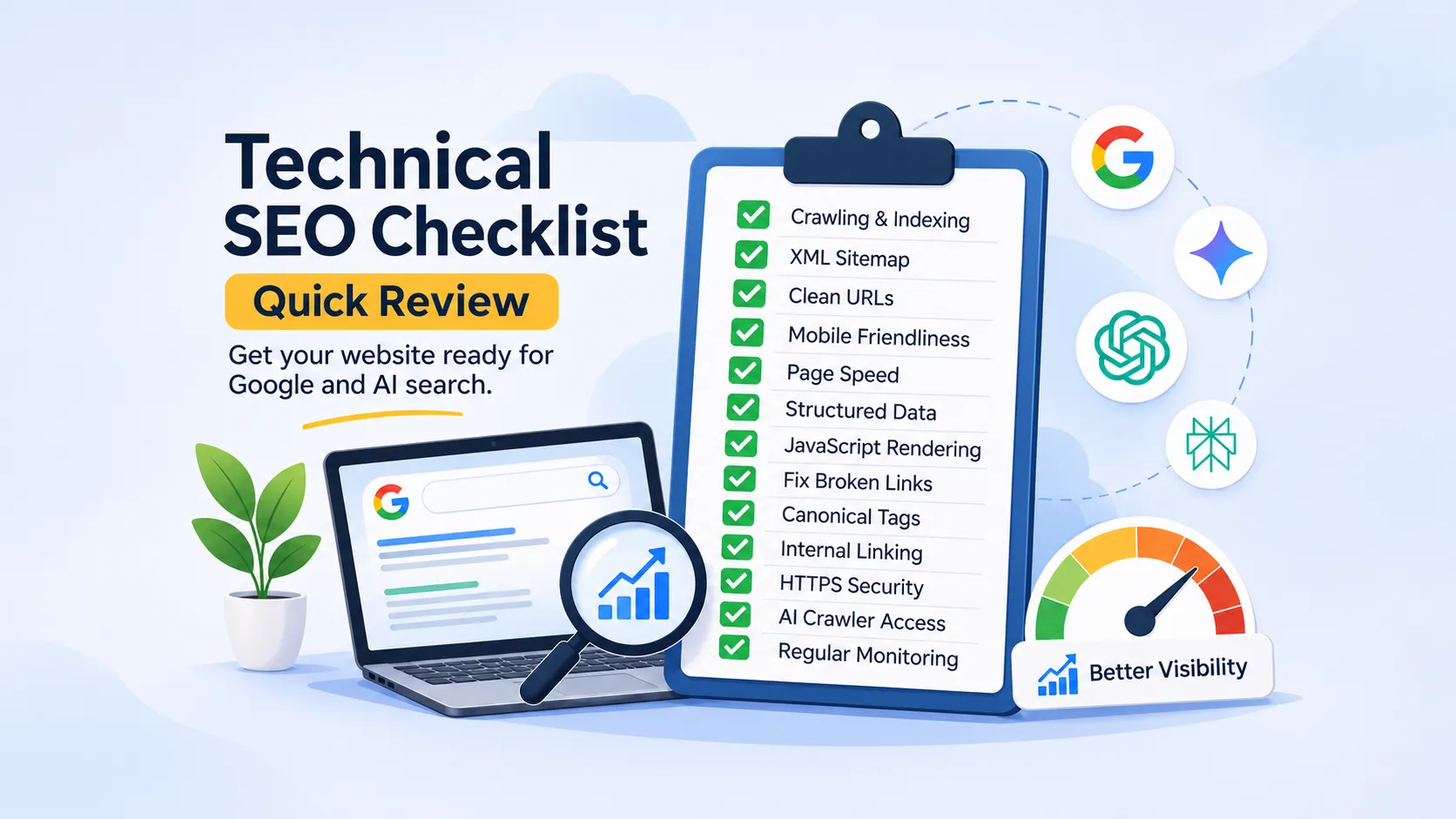
Technical SEO Checklist for Better Google and AI Search Visibility
Read Article
Top Deal Apps and Platforms to Get Your Restaurant Noticed in Tricity
Read Article
How Pharmaceutical Companies Can Generate B2B Leads Online
Read Article